Configuring Challenge Scoring
Scoring rules turn qualifying activities into Challenge points. Configure them in the Scoring tab of the web Challenge editor.
Start With An Outcome
Choose the result you want before editing individual fields:
- Reward participation: use fixed points for every matching activity.
- Reward effort: award points from distance, moving time, or elevation.
- Add a bonus: award fixed points after an activity reaches a threshold.
- Keep results balanced: cap an individual rule or the combined activity score.
- Add a quality check: award a rule’s points only when its metric condition passes.
The Scoring Help panel explains these outcomes and summarizes the current rules in plain language.
Use A Common Rule
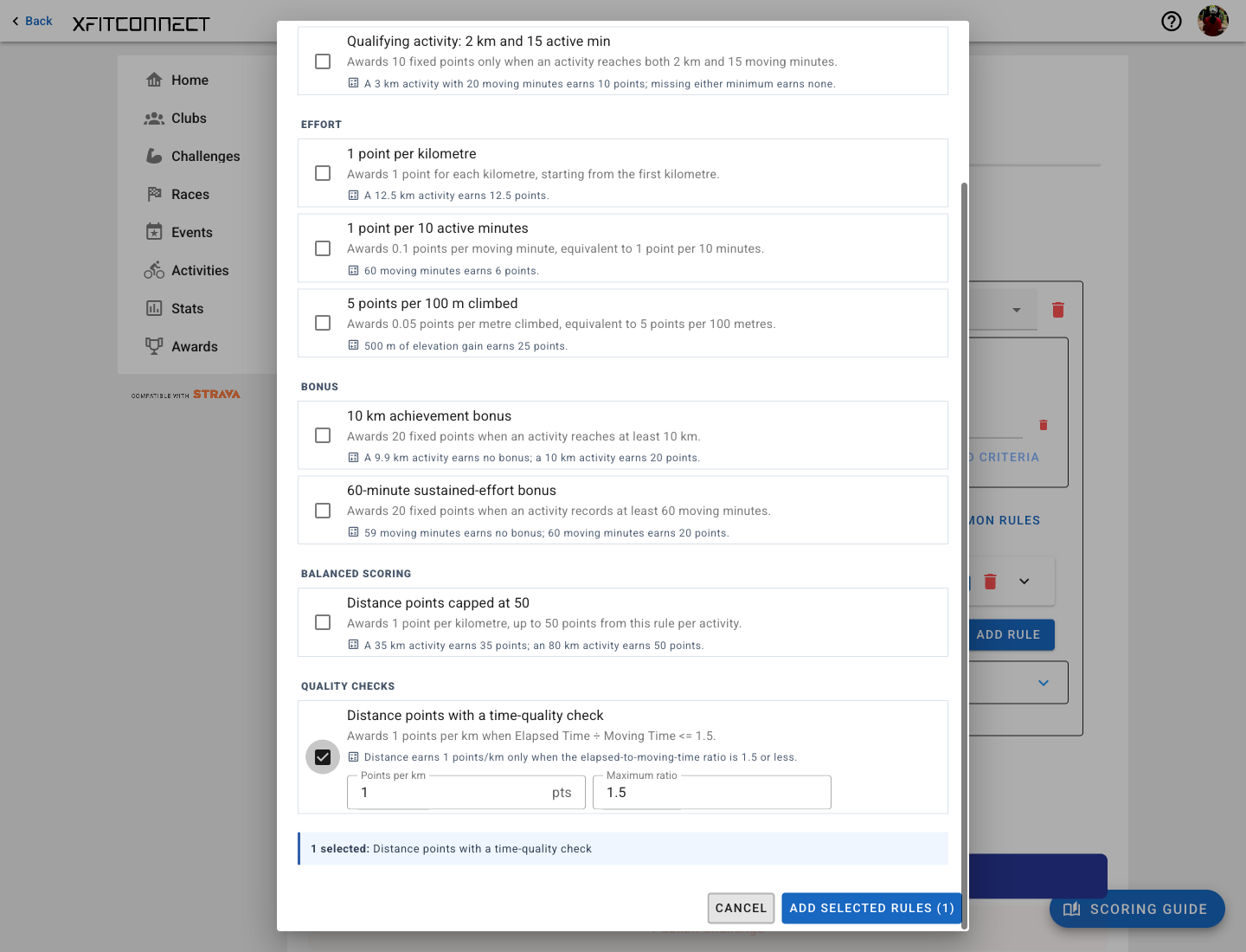
- Select
Add Common Rules. - Select one or more rules.
- Adjust the compact fields shown under each selected rule.
- Check the updated explanation and example.
- Select
Add Selected Rules. - Review the resulting rules and save the Challenge.
Quick configuration changes only the selected template. The full rule remains editable after it is added.
Understand The Main Fields
Conditions
Conditions decide whether a rule applies. Multiple conditions can be joined with AND or OR.
- A Value condition compares one metric with a number, such as
Distance >= 10 km. - A Metric condition combines two metrics before comparing the result, such as
Elapsed Time / Moving Time <= 2.
A condition gates only the rule that contains it. It does not automatically reject the activity from other rules.
Fixed Score
Turn on Fixed Score when every matching activity should earn one set amount. For example, a
60-minute activity can earn a fixed 20-point bonus.
Leave it off when points should grow with a metric.
Score Metric, Score After, Weight, And Points
For metric scoring, the rule calculates:
(Score Metric - Score After) × Weight × Points
Example: Distance is 12 km, Score After is 2 km, Weight is 1, and Points is 2. The rule awards 20 points.
Limit
Use Limit when one rule should not contribute more or less than a boundary. A maximum limit of
50 points keeps a long activity from dominating a distance rule.
Maximum points per activity
In the desktop web Scoring tab, find Scoring limits below the rules in the category default. Set Maximum points per activity independently for Run, Walk, Ride or another category. Leave it blank for unlimited points. Enter a positive number with at most two decimal places.
This cap applies to the combined score from all applicable rules, including distance, elevation, fixed bonuses and deductions. For example, distance earns 18 points and elevation earns 7: a cap of 20 awards 20, rather than 25. Individual rule limits still apply first. Rule order does not determine when the activity cap is applied.
Indoor/virtual activities inherit their category’s cap unless an indoor override sets its own Maximum points per activity. Scoring limits is available on both default and indoor rulesets, including an indoor-only ruleset. Leaving the indoor field blank restores inheritance; without a category cap this means unlimited. Indoor limits can be lower or higher than the default. Activity subtypes share the setting for their category and mode. Test Your Rules and the scoring log show the combined cap. An activity that reaches the cap still contributes its full accepted distance, time and elevation if selected. Overlap and daily Top-N selection happen after capping and can still exclude it. This setting is not a daily cap and does not cap separately awarded challenge-goal bonuses.
Existing challenges remain unlimited unless configured. Clearing the field removes the cap. Saving scoring changes on an existing challenge uses the existing queued rescore workflow, including adding, changing or clearing Maximum points per activity. Historical scores update when that work completes; the save response does not mean recalculation has finished. Monitor the rescore operation as for other rule edits.
Quality-Gated Distance Example
The common rule Distance points with a time-quality check awards distance points only when:
Elapsed Time / Moving Time <= configured ratio
With a ratio of 2:
- 60 moving minutes and 90 elapsed minutes passes because the ratio is 1.5.
- 60 moving minutes and 130 elapsed minutes does not pass because the ratio is about 2.17.
If the condition fails, this rule awards no points. Other rules are evaluated independently.
Units
- Distance: km
- Moving Time and Elapsed Time: minutes
- Speed: km/h
- Pace: min/km
- Elevation Gain: m
Schedule A Rule
When Schedule Window is available, use it for time-specific bonuses or restrictions. The first row contains Start Date, End Date, and Days. The second row contains Start Time and End Time. The complete activity must fit inside the configured local schedule.
Share conditions between rules
Use Activity eligibility for requirements that every scoring rule must satisfy, such as a minimum distance or Elapsed time / Moving time ≤ 2. Existing configurations keep their original fields until you choose Enable shared conditions, Add group, or apply a sharing suggestion.
Use Add group for requirements shared by only some rules. Name the group, enter its shared conditions, then use Add rule or Add common rules inside it. The condition editor supports the same value comparisons and metric expressions at activity, group, and rule level.
Expand a rule to edit its name, group, additional conditions, and points calculation. Fixed points, score metric, score after, weight, points, rule limits, and schedule windows remain available. Inherited conditions are shown above the rule’s own conditions. Moving a rule to another group changes the conditions it must satisfy.
Share repeated conditions shows eligible repetitions and the affected rules before applying a change. A condition shared by every rule becomes activity eligibility; one shared by a subset becomes a group. Conditions joined with OR are left untouched, and milestone bonuses are not merged. Each qualifying bonus still adds its own points.
Rules still score in their original order regardless of their displayed group. A limit based on another rule can reference an earlier rule; rename that rule freely, but update its references before deleting it. When converting older configurations, legacy name-based limits retain their existing numeric effect as value limits.
Use Test Your Rules to check eligibility, pace boundaries, bonuses, and the combined activity cap before saving. The scoring log identifies a failed shared group separately from an individual rule condition.
Choose how to award points
Use Add points to choose a fixed bonus, points per amount, milestone bonuses, different awards by range, progressive points, or a custom calculation. Use a starter opens the common examples; new v3 starters reopen in the same guided forms. Existing configurations can opt into Enable guided editing; saving legacy rules without enabling it does not convert their storage format.
Start with Award and When. A condition is optional: an award can apply to every qualifying activity, a simple threshold, or a metric expression such as elapsed time divided by moving time. Extra conditions in an award affect only those points; activity requirements affect the entire activity.
Milestone bonuses and progressive portions accumulate. A range component allows one matching interval, while other components still contribute independently. Range limits apply to individual rows, not the combined component. For a negative adjustment, a minimum score/deduction floor such as −125 prevents the deduction exceeding 125 points. Progressive portion limits are calculated from the portion’s width and rate.
Open Optional settings to configure a schedule or a single award’s limit. Multi-row awards have separate row limits and a shared schedule. The full activity must fit its schedule. Generated headings and units follow the chosen metrics; you do not need to name rules or manage group membership. Unrecognized historical configurations remain available through their generic calculation and condition fields rather than being guessed into a guided form.
Copying scoring rules
Choose Copy ruleset on an activity category, then choose an enabled destination category/type and its default or virtual/indoor mode. Empty destination rulesets are filled in place. If a destination already has rules (including automatically created defaults), explicitly select Replace the destination’s existing scoring configuration to replace its configuration in that mode. Other modes and the source remain unchanged. The copy includes requirements, all awards, individual limits, schedules and the effective activity cap. A blank indoor cap inherits the destination category’s cap. Review metric rates and conditions for the new activity, then save the challenge. Editing the copy does not edit the original.
Use Duplicate award to copy a guided award, including all its milestones, ranges or portions. The copy appears at the end of that section. Generic rules retain their duplicate and delete icons. Deleting an award removes its rows; rules used by another rule’s limit cannot be deleted until that reference is resolved.
Create a conditional section before adding points
Choose Add conditional section, enter the shared conditions, then select Create section. The section opens with a heading generated from those conditions. Use Add points or Use a starter inside it to add awards that must meet those conditions as well as the activity requirements. Each award can also have its own conditions. Canceling section creation makes no changes.
For example, create a section for pace ≤ 8.5 min/km and elapsed time ÷ moving time ≤ 2, then add distance points and elevation points inside it. Awards outside that section do not inherit those conditions. Simplify repeated conditions remains available when shared conditions were already entered on existing rules.